Something looks wrong on an invoice, a domain or a project, and you want a person to look at it. The quickest way to reach us is a support ticket opened from your Linkysoft client area, because it goes straight to the team that handles that kind of request and it keeps every reply in one thread instead of a scattered e-mail chain. Follow the seven steps below in order, from signing in to seeing your ticket listed with its reference. No technical experience needed.
Step one: sign in to your client area
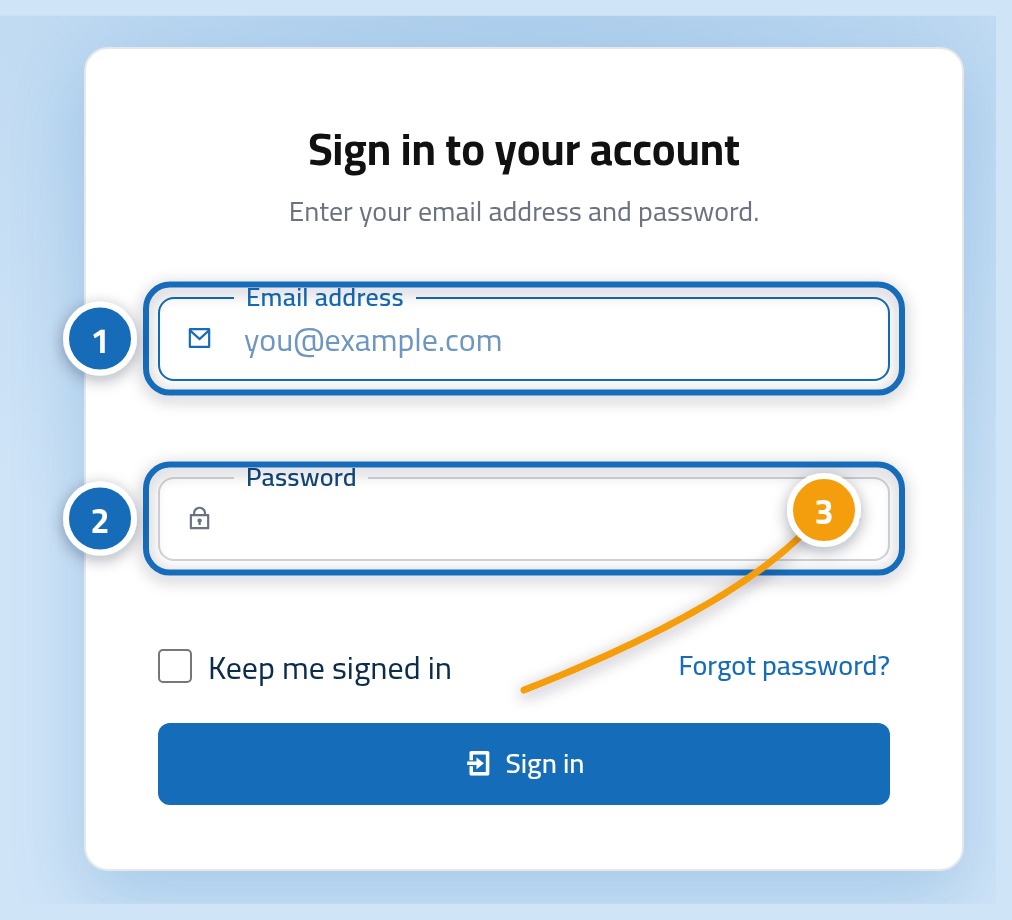
Start at the Linkysoft console sign in page at https://storek.app/console?lang=en. Type the e-mail address your account is registered with (1) and your password (2), then press the sign in button (3). If the password will not come back to you, use the forgot password link under the form and follow the e-mail we send you.
Step two: click Tickets in the side menu
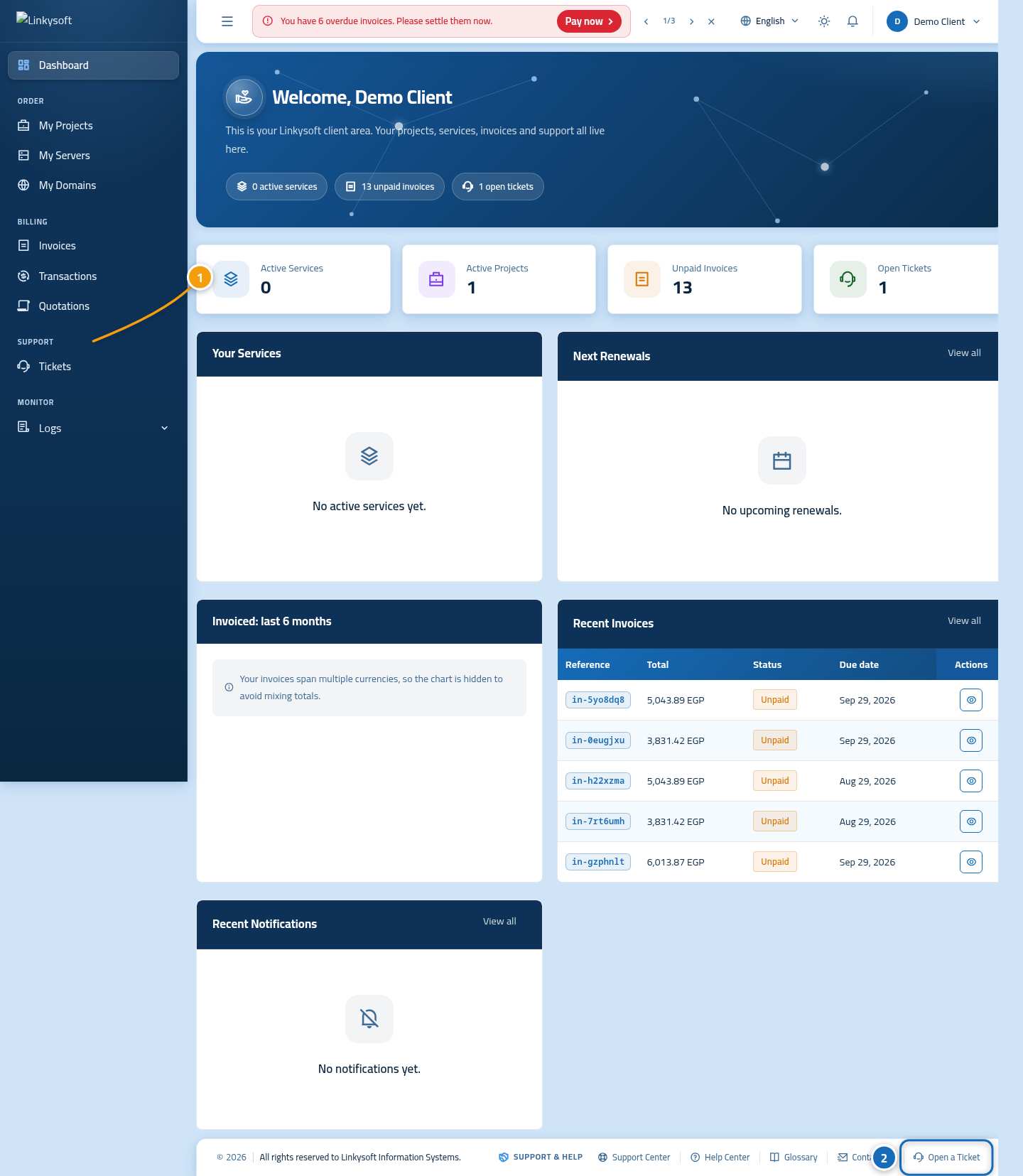
The dashboard opens on a summary of your account. In the side menu on the left, click Tickets (1), which opens the list of every request you have sent us so far. There is also an Open a Ticket button (2) lower down the page if you would rather go straight to the form.
Step three: press New ticket
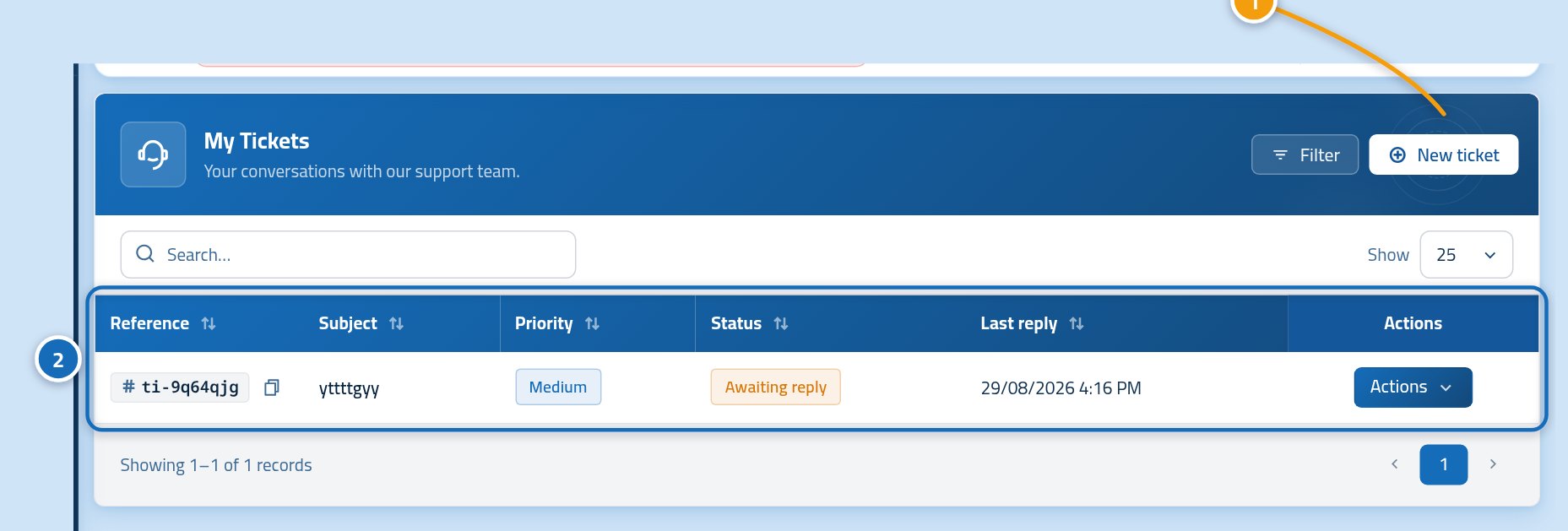
This page lists every ticket you have opened, each with its reference and its current state, so you can check whether you already asked about the same thing. Press New ticket (1) at the top of the list. If the list is empty, that is normal for a first request and the button is in the same place.
Step four: say what the ticket is about
The form asks what your request concerns before it asks for the detail, because that is what decides who reads it. Fill the top of the form in order: a short subject line (1), the service or project the request belongs to (2), the team that should handle it (3) and how urgent it is (4). A subject such as Invoice in-5yo8dq8 not showing as paid reaches the right person faster than Help please.
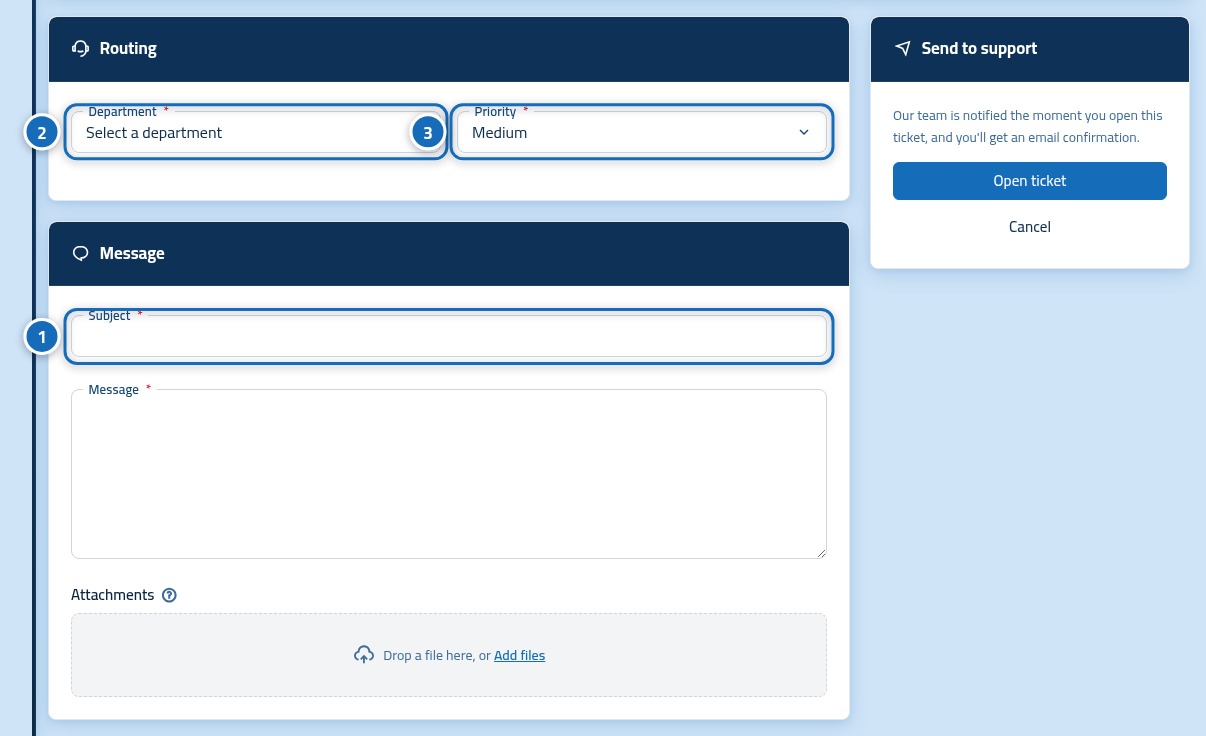
- Subject: one line that names the problem and the thing it affects.
- Service or project: pick the one the request concerns, so we open the right file.
- Department: the team that should read it, for example billing or technical support.
- Priority: normal for a question, high when something is not working at all.
Step five: write your message and attach anything useful
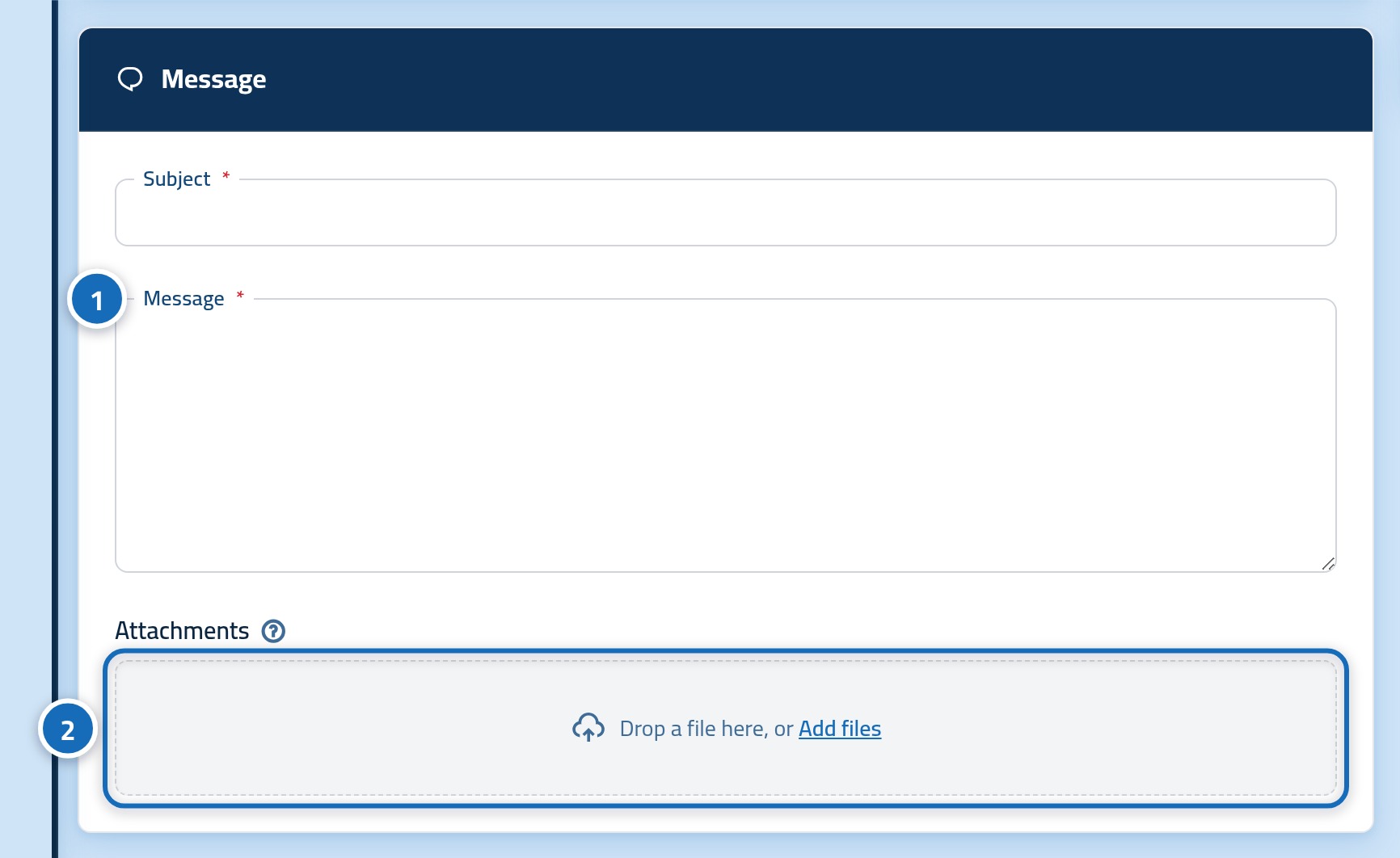
Now explain the request itself in the message box (1). Tell us what you did, what you expected and what happened instead, and quote the reference of the invoice, domain or project involved. If a picture explains it faster than a paragraph, attach it with the file button (2), which accepts screenshots and documents.
Step six: press the send button
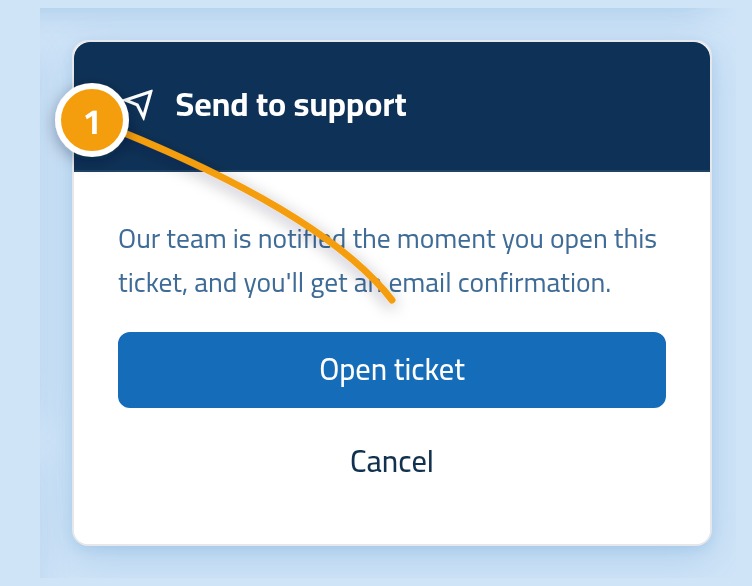
Read the form once more, then press the send button (1) at the bottom. It stops responding for a moment while your ticket is saved, so press it once and wait rather than pressing again, because a second press can leave you with two tickets about the same thing.
Step seven: check that your ticket is listed
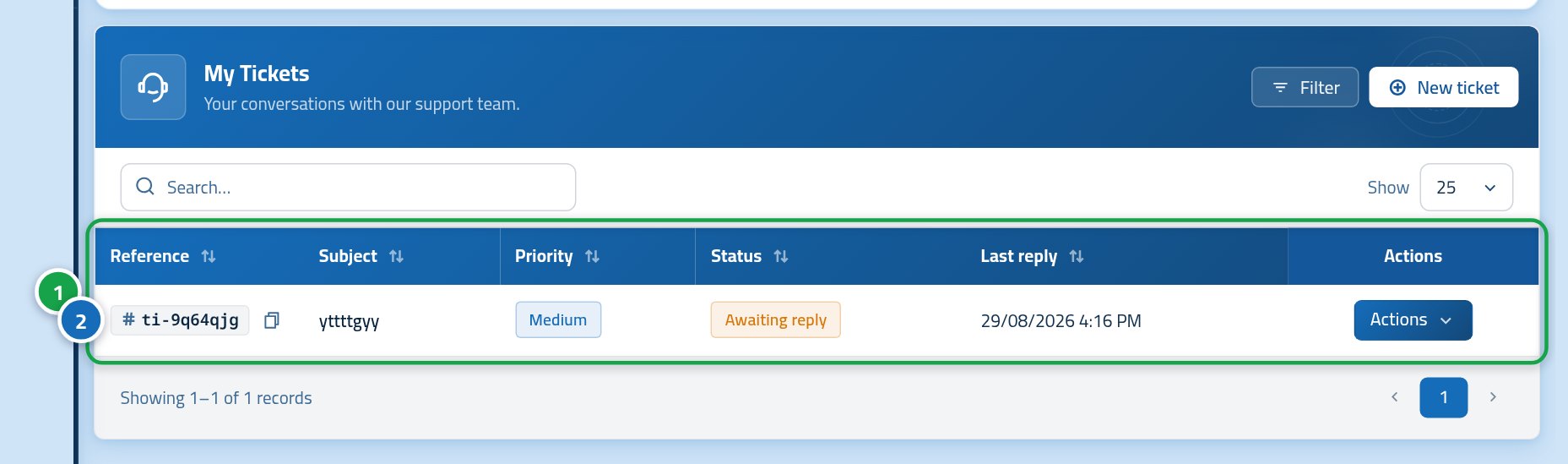
You land back on the tickets page and your request now sits at the top of the list (1) with its own reference (2) and an open status (3). Write the reference down, since quoting it in an e-mail or on the phone tells us instantly which conversation you mean. Linkysoft sends you an e-mail the moment the first reply is posted.
What if something on the form stops you
Most problems at this point come from one of a few small things, and each has a quick answer. Work down this list before you try again, and if none of it applies, reach us through the contact page and mention what the form told you.
- The New ticket button does nothing: your session has probably expired, so sign in again at the console and return to the tickets page.
- The service list is empty: your account has no active service yet, which is fine, choose the general department and describe the request in the message.
- The attachment is refused: it is either too large or a file type we do not accept, so send a screenshot in PNG or JPG instead.
- The page shows a red message under a box: that box is required or too short, fill it and press send again.
After you send it
A ticket is a conversation, not a form you post once, so the useful part starts after you press send. You can follow it and answer from the same place you opened it, and keeping it in one thread is what lets whoever picks it up see the whole story.
- Open the ticket from your tickets list to read replies and add more detail.
- Answer inside the same ticket instead of opening a new one about the same issue.
- Watch your e-mail, since every reply from our team is announced there.
- Close the ticket yourself once the matter is settled, or leave it and it closes on its own after a quiet spell.